
192.168.2.1 IP Address
192.168.2.1 is a private IP address commonly used by routers for local network access. It acts as the gateway to the router’s administrative console, where users can configure network settings.
Many well-known router brands, like Tenda, Belkin, and SMC, set this as the default IP address. By typing 192.168.2.1 in a web browser, users can access the router’s login page and manage settings such as Wi-Fi passwords, network security, and other configuration options. This address falls under the IPv4 protocol, making it widely used for home and small office routers.
Step-by-Step Login Guide to 192.168.2.1
To access your router’s admin page using the 192.168.2.1 IP address, follow these steps:
- Ensure Network Connection: Ensure your device is connected to the router’s network via Wi-Fi or Ethernet cable.
- Open a Web Browser: Launch any web browser (Chrome, Firefox, etc.) on your device.
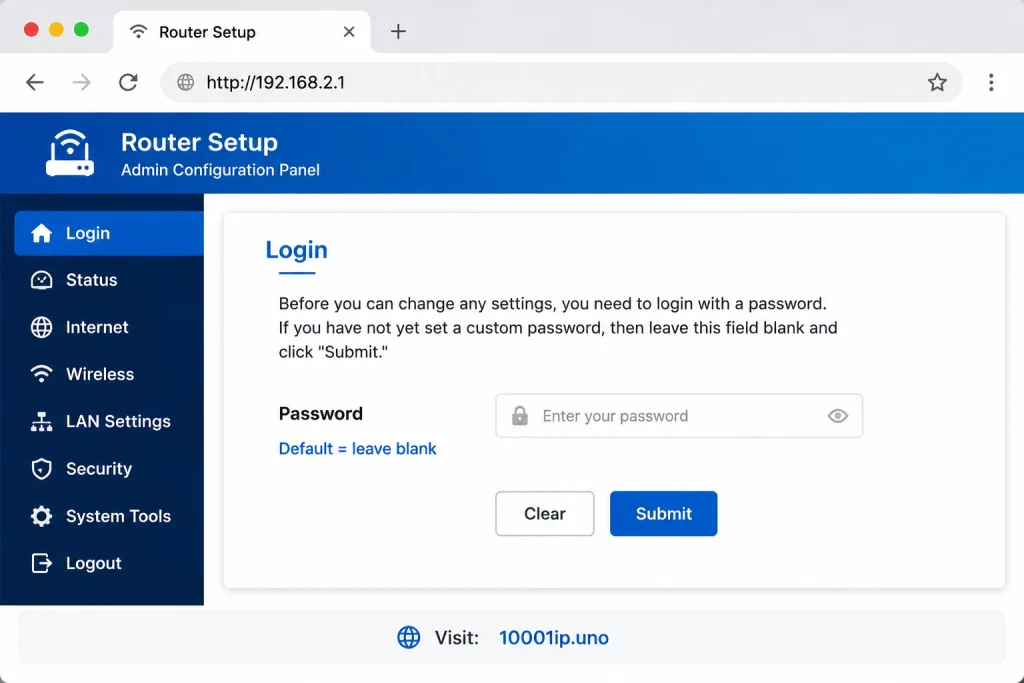
- Enter IP Address in Browser: Type “http://192.168.2.1” into the address bar and hit Enter.
- Enter Login Credentials: A login page will appear; enter the default username and password.
- Authenticate the Login: Click the login button to access your router’s settings.
- Access Router Settings: Once logged in, you can manage your router’s configuration options.
Default Username and Password Combinations
Most routers that use the 192.168.2.1 address have default login credentials. Here’s a table of the most common combinations:
| IP Address | Username | Password |
|---|---|---|
| 192.168.2.1 | admin | 1234 |
| 192.168.2.1 | admin | admin |
| 192.168.2.1 | 1234 | admin |
| 192.168.2.1 | admin | smcadmin |
| 192.168.2.1 | admin | (blank) |
If none of these work, try the default credentials that came with your router’s manual or label.
How to Find Your Router’s IP Address
To access your router’s settings, you need to know its IP address. Here’s how to find it:
- Open Command Prompt (Windows)
PressWindows + R, typecmd, and hit Enter. - Type
ipconfig
In the Command Prompt, typeipconfigand press Enter. - Find the Default Gateway
Look for the “Default Gateway” under your network adapter. This is your router’s IP. - Use System Preferences (Mac)
OpenSystem Preferences>Network. - Select Your Network
Choose the connected network and click onAdvanced. - Check Router’s IP Address
The router’s IP address will be listed as the “Router” under TCP/IP settings.
Troubleshooting Login Issues
Common issues faced when logging into a 192.168.2.1 router include:
- Error Message: “This Webpage is Not Available”
Fix: Ensure that your router is powered on and properly connected. Check for any loose Ethernet cables. - Unable to Access Admin Page
Fix: Double-check that the IP address is typed correctly. Ensure that you are using the correct IP address (sometimes it may be 192.168.1.1). - Forgotten Login Credentials
Fix: If you forgot the username or password, refer to your router’s manual for default credentials, or reset the router to factory settings.
How to Reset the Router and Revert to Default Settings
If you cannot log in due to forgotten credentials or other issues, follow these steps to reset the router:
- Locate the Reset Button: Find the small reset button on your router (usually on the back or bottom).
- Press and Hold the Reset Button: Use a pin or paperclip to press and hold the button for 10-15 seconds.
- Wait for Router to Reset: After holding the button, wait for the router’s LED lights to flash or reset.
- Reconnect to the Router: After the router has reset, reconnect your device to the router using either Wi-Fi or Ethernet.
- Login Using Default Credentials: Open your browser, go to “http://192.168.2.1“, and log in using the default credentials.
- Reconfigure the Router: Once logged in, you can reconfigure settings like Wi-Fi name, password, and other settings.
What to Do When Your Router Is Not Responding
If your router isn’t responding or you can’t access its settings, follow these troubleshooting steps:
- Check Power and Connections: Ensure the router is powered on, and check if all cables are securely connected.
- Reboot the Router: Unplug the router, wait for 10-15 seconds, and plug it back in. This often resolves connection issues.
- Verify IP Address: Make sure you are using the correct IP address, such as 192.168.2.1 or 192.168.1.1.
- Check for Overheating: Ensure the router isn’t overheating. Move it to a cooler, ventilated area if needed.
- Update Router Firmware: Check for firmware updates by logging into your router’s admin page. An outdated firmware can cause performance issues.
- Reset the Router: If nothing works, perform a factory reset by pressing the reset button for 10-15 seconds.
Advanced Login Configuration Options
Once you’ve accessed your router’s admin panel, you have multiple advanced options to configure your router.
Change Router Username and Password
For enhanced security, change the default login credentials to something unique. Strong passwords with a combination of letters, numbers, and special characters are recommended.
Set Up Network Security
Configure your router’s security settings, such as WPA2 encryption, to keep your network safe from unauthorized users.
Firmware Update
Keep your router’s firmware up to date to benefit from the latest security features and improvements.
Port Forwarding
Set up port forwarding if you need specific devices to be accessible remotely, such as gaming consoles or security cameras.
FAQs
Can I change my router’s login credentials?
Yes, you can change your router’s login credentials for added security. Access the router’s admin page and update the username and password.
How can I access my router remotely?
To access your router remotely, enable remote login in the router’s settings. Make sure to use a strong password for security.
How do I find the default username and password for my router?
You can find the default username and password on a label at the back of your router or in the user manual.
How can I improve my router’s security?
Improve your router’s security by setting a strong password, enabling WPA2 encryption, and regularly updating the firmware to protect against vulnerabilities.
How can I disable WPS on my router?
To disable WPS, go to your router’s settings page and turn off the WPS feature. This enhances security by preventing unauthorized connections.
How can I set up a guest network?
You can set up a guest network by accessing the router’s admin page and enabling the guest Wi-Fi feature, allowing guests to connect without accessing your main network.