

Router IP Finder Guide Tool
A Router IP Finder Guide Tool helps users quickly locate their router IP address for internet and network settings access. Many users need router IP addresses to change WiFi passwords, improve security, manage connected devices, or fix internet problems safely.
This helpful tool makes router access easier for beginners without complicated networking knowledge or technical setup experience. Users can find default router IPs, open admin panels, and manage wireless network settings smoothly from computers or mobile devices anytime.
Router IP Finder Tool
Find your router login IP quickly and open the admin page with one click.
What Is a Router IP Finder Guide Tool?
A Router IP Finder Guide Tool is an online utility that helps users identify their router’s default login IP address quickly. It provides simple steps for accessing router admin settings without needing advanced technical networking knowledge or complicated manual searching methods.
The tool explains common router IP addresses like 192.168.1.1 and 192.168.0.1 in easy language for beginners. Users can safely open router settings pages, manage internet configurations, update WiFi passwords, and troubleshoot connection issues more efficiently and securely online.
Most Common Default Router IP Addresses Explained
| Router IP Address | Common Use |
|---|---|
| 192.168.1.1 | Popular router login address for many home routers |
| 192.168.0.1 | Commonly used by TP-Link, D-Link, and Netgear routers |
| 10.0.0.1 | Used by Comcast Xfinity and business network routers |
| 192.168.100.1 | Often used for modem settings and cable internet devices |
| 192.168.1.254 | Used by some broadband and modem router brands |
| 192.168.8.1 | Common Huawei router and mobile hotspot login address |
| 192.168.10.1 | Used by several wireless routers and extender devices |
| 192.168.11.1 | Popular with Buffalo and Japanese router manufacturers |
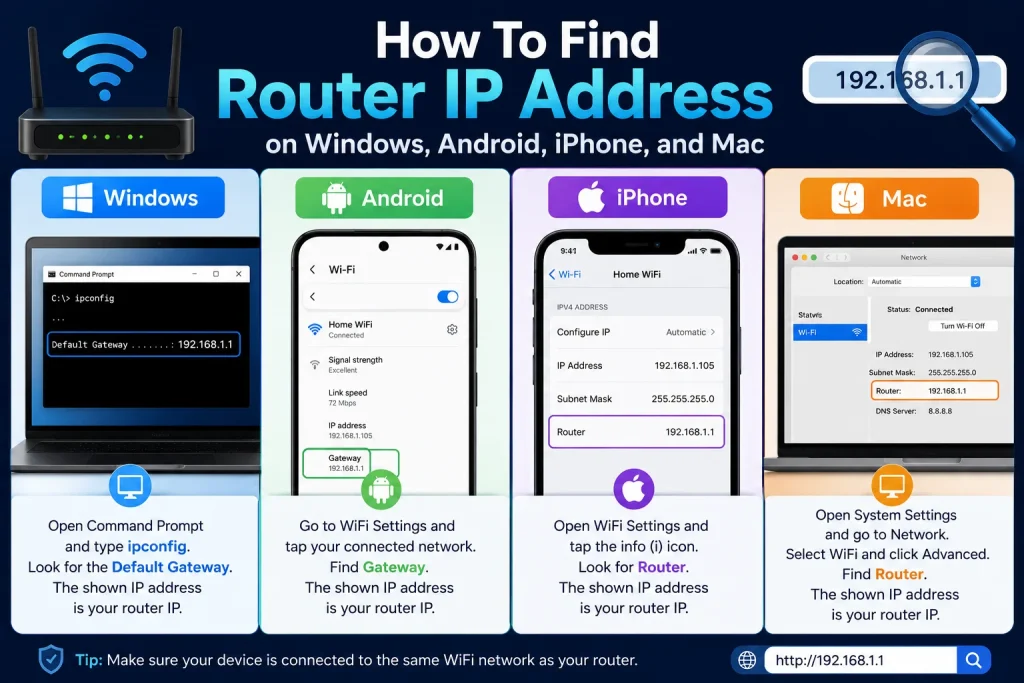
How To Find Router IP Address on Windows, Android, iPhone, and Mac
Finding your router IP address helps users access internet settings and manage wireless networks more easily and safely.
On Windows
Open Command Prompt from the Windows search bar and type ipconfig carefully inside the command window.
Check the Default Gateway option because it usually shows your current router login IP address.
Copy the router IP address and paste it inside your internet browser address bar safely.
Open the router admin login page using the correct username and password details carefully.
Use Windows network settings if Command Prompt methods seem difficult for beginner internet users.
Make sure your computer stays connected with the same wireless router network during login access.
On Android
Open WiFi settings from your Android mobile phone and select the connected wireless network carefully.
Tap network details because many Android devices display router IP addresses inside connection settings.
Find the Gateway or Router section showing your current wireless router login address instantly online.
Copy the displayed router IP and open it directly inside your mobile internet browser safely.
Use updated Android versions because older devices sometimes hide advanced wireless network information settings.
Stay connected with your home router network while accessing admin login settings through browsers safely.
On iPhone
Open iPhone Settings and select the connected wireless WiFi network from internet connection options carefully.
Tap the information icon beside your WiFi connection to open detailed network information settings instantly.
Locate the Router section because it usually contains the current router login IP address information.
Copy the router IP address and open it inside Safari or another secure mobile browser safely.
Ensure your iPhone remains connected with the same wireless network during router admin login access.
Use updated iOS versions because network settings locations may slightly change after software updates regularly.
On Mac
Open System Settings on your Mac device and select wireless network connection options carefully online.
Choose the connected WiFi network and open advanced internet connection details from network settings menu.
Locate the Router or Gateway section showing your wireless router login IP address instantly available.
Copy the router IP address and paste it inside Safari or another secure internet browser.
Use correct router login details carefully because incorrect usernames may block temporary admin access attempts.
Keep your Mac connected with the same router network while opening wireless admin settings safely.
Easy Ways To Open Router Admin Login Page Safely
Opening router admin pages safely helps users manage internet settings and protect wireless networks from security problems.
- Enter the correct router IP address carefully inside trusted internet browser address bars only.
- Always use official router usernames and passwords for secure admin panel access online safely.
- Avoid opening router settings pages using unknown public wireless internet networks for better security.
- Update router firmware regularly for improved wireless protection and safer internet management features always.
- Change default router passwords immediately after accessing admin settings for stronger network security protection.
- Use secure browsers and trusted devices while managing important wireless router configuration settings safely.
Common Router IP Finder Problems and Quick Fixes
Many users face router IP finder issues, but simple troubleshooting steps can solve internet access problems quickly.
| Common Problem | Quick Solution |
|---|---|
| Router IP address not opening | Check internet connection and confirm correct router IP carefully |
| Wrong router login username or password | Reset router settings and use default login credentials safely |
| Browser showing connection errors | Clear browser cache and restart the internet browser properly |
| Router admin page loading slowly | Restart router and improve internet connection stability immediately |
| Mobile device cannot detect router IP | Reconnect WiFi network and refresh wireless connection settings |
| Router settings page not responding | Restart router device and try another secure internet browser |
| Users entering incorrect IP addresses | Double-check router IP numbers before opening admin login pages |
| Wireless network disconnecting repeatedly | Stay connected with the same router network during admin access |
Best Security Tips After Accessing Router Settings
Protecting router settings properly helps users improve wireless security and keep internet connections safer from unauthorized access daily.
- Change default router usernames and passwords immediately after opening wireless admin settings safely online.
- Use strong WiFi passwords containing numbers, symbols, and uppercase letters for better network protection always.
- Enable WPA2 or WPA3 wireless encryption settings for stronger internet and router security protection safely.
- Update router firmware regularly because newer updates improve internet security and network performance stability instantly.
- Disable remote router access if users do not need outside internet management features regularly online.
- Remove unknown connected devices from router settings to improve wireless network privacy and security quickly.
Frequently Asked Questions
Many users search router IP finder questions to understand wireless settings, internet access, and router login problems easily online.
What is the most common router IP address?
The most common router IP addresses are 192.168.1.1 and 192.168.0.1. Many popular router brands use these addresses for opening wireless admin settings and managing internet connections safely online.
Can users find router IP addresses on mobile phones?
Yes, users can find router IP addresses through Android and iPhone WiFi settings easily. Most smartphones display router or gateway information inside connected wireless network details sections.
Why is the router IP address not opening?
Router IP addresses may not open because of incorrect numbers, browser problems, weak internet connections, or disconnected wireless networks. Restarting routers and checking network settings often solves these issues quickly.
Is it safe to access router admin settings?
Yes, accessing router settings is generally safe when users use trusted devices and secure internet connections. Changing default passwords and enabling encryption improves router security and wireless network protection significantly.
Can router IP addresses be changed manually?
Yes, advanced users can change router IP addresses through admin settings pages if needed. However, incorrect configuration changes may affect internet access and wireless network performance temporarily sometimes.
Why do different routers use different IP addresses?
Different router manufacturers use different default IP addresses for wireless network management and internet setup purposes. Router models, brands, and internet providers may also affect these default settings.
Final Thoughts
A Router IP Finder Guide Tool helps users quickly locate router login addresses and manage wireless internet settings more easily. It simplifies router access for beginners and helps users improve WiFi security, update passwords, and fix internet problems safely. Understanding common router IP addresses also reduces login mistakes and connection issues during setup. By following secure login practices and updating router settings regularly, users can protect their wireless networks and connected devices more effectively. Simple router management habits can improve internet performance, online privacy, and overall network security for home and office users daily.